By Joshua Buzzard
Advanced Large Language Models, such as ChatGPT, Grok, Gemini, DeepSeek, and Copilot, are changing many industries, but how can they assist TAB professionals in reviewing report data?
Large Language Models are terrible at processing numbers. These tools often make mistakes when looking through data and while trying to remember the rules you give them. Their strength lies in how flexible and creative they are, but that flexibility is their weakness when it comes to using hard rules for data validation. Microsoft Excel, by contrast, never forgets the rules and looks at data consistently, depending on how you program it. But setting Excel up to work the way you want is difficult and requires technical expertise. Large Language Models have that technical expertise. Together, Large Language Models and Excel form a symbiotic relationship. With refined prompts, Large Language Models can craft VBA macros to tailor Excel’s capabilities, streamlining data validation.
My Excel macros, coded entirely by Large Language Models, give feedback on TAB report data in seconds. These macros highlight cells outside of NEBB or job-specific standards (such as a -5/+5% proportioning specification) and add comments to explain the issues. This proven approach has empowered my work and the work of my colleagues. The following sections of this article will guide you in replicating it: first by explaining how to write precise Large Language Model prompts, followed by how to leverage Large Language Models to create Excel macros, and concluding with strategies for building scalable tools, enabling you to transform report validation and elevate your TAB workflow.
Tier 1 – Canned Prompts: Your Large Language Model Starting Line
Large Language Models need clear, precise instructions. Tell one of them “Make this better,” and you will get a garbage response: vague input equals vague output. However, when you write a great prompt, Large Language Models spring to life. When a prompt is for a repeated task, saving that prompt is a good idea. I call these “canned prompts” because I have saved them in text files that I can reuse; they are always ready to go.
My go-to is what I call the Master Prompt. This prompt can be pasted into any Large Language Model with a basic concept, and it enables Large Language Models to craft a precise, customized prompt through questions. Here is the exact text:
You are a prompt engineer, an expert in crafting clear, precise, and effective instructions for Large Language Models. Your task is to take the basic prompt I provide and rewrite it into a highly detailed, unambiguous version optimized for Large Language Model performance.
- Read my basic prompt carefully.
- Rewrite it to eliminate vagueness, enhance specificity, and ensure it aligns with Large Language Model best practices.
- After rewriting, ask me three clarifying questions to refine it further.
- Based on my answers, revise the prompt again and ask three more clarifying questions.
- Repeat this iterative process until I confirm satisfaction with the final version.
Focus on preserving my intent while making the prompt robust and repeatable. Provide each revised version with a brief explanation of changes.
I used the Master Prompt to build a style guide as an example for this article, variations of which I use to edit summaries, emails, and notes. This style guide is tailored for technician summaries.
You are an expert editor tasked with refining technician-written summaries for TAB (Testing, Adjusting, and Balancing) projects into clear, concise, and professional narratives for NEBB reports. Focus on stylistic polish without altering factual content.
- Replace vague terms with precise, technical details relevant to TAB work.
- Trim unnecessary words.
- Swap weak verbs for strong, action-driven ones.
- Shift passive voice to active.
- Remove redundant phrases.
- Retain TAB-specific terms, such as CFM and static pressure, while simplifying overcomplicated phrasing.
- Vary sentence length for smooth flow and avoid monotonous patterns.
Process: accept the summary text, edit it line by line, output the original labeled “Before,” the revision labeled “After,” and a brief explanation of changes. Preserve the technician’s intent and technical accuracy.
Tier 2 – Excel Macro Tricks: Making Spreadsheets Dance
Large Language Models are great at translating natural language into precise VBA code. By crafting clear prompts, you can instruct Large Language Models to generate macros that streamline report validation and form creation, saving time.
Example 1: CFM Tolerance Validation
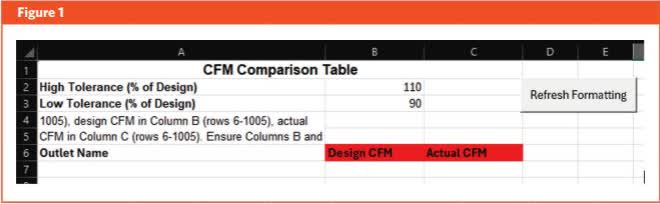
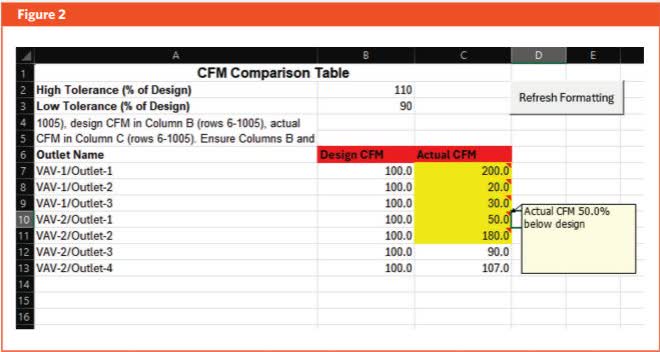
First, I used the Master Prompt to create an ultra-clear prompt. After the prompt was finished, the Large Language Model wrote two macros. The first created a table with three columns labeled Outlet Name, Design CFM, and Actual CFM. The other validated values entered into that table. Users enter data starting at row 7, with a button labeled “Refresh Formatting” triggering the macro. After specifying a tolerance, the macro scans Column C, highlights deviations in yellow, and adds comments detailing the issue.
In Figure 1, the macro created a table with headers. This table is 100% generated by the macro that the Large Language Model wrote. Even the bold sections and colors were formatted by the macro.
In Figure 2, I entered a few design and actual CFM values. When I hovered over the red triangle in the corner, a comment appeared. Once again, this is the macro highlighting and commenting, not me.
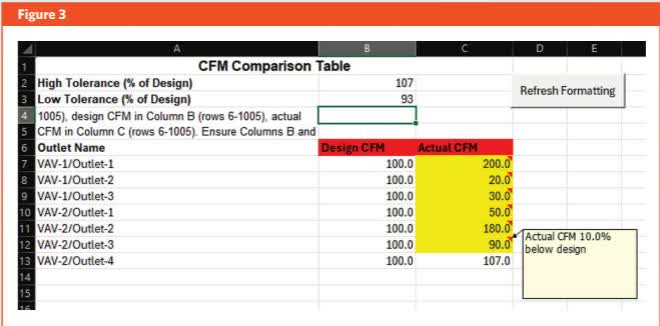
In Figure 3, I tightened the tolerance to +/-7%. The macro highlighted additional cells, such as VAV-2/Outlet-3, which were previously within tolerance.
Example 2: Stairwell Pressurization Forms
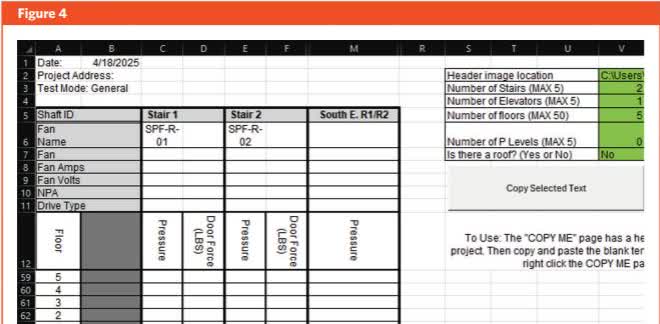
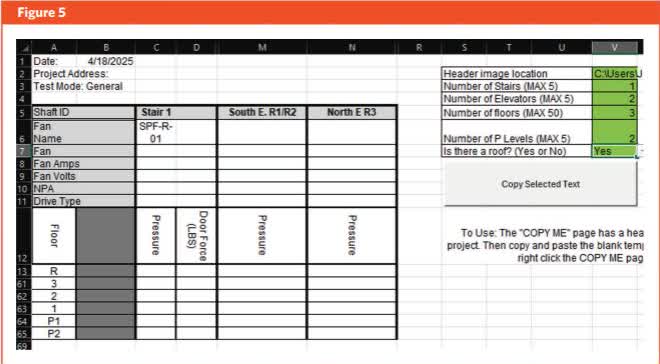
Below is another example I use for generating stairwell pressurization forms. It generates forms for up to five elevators, five stairs, 50 floors, five P levels, and a roof. When I get the table the way I want, it allows me to highlight the table and click the “Copy Selected Text” button, which creates a properly formatted table on a new Excel sheet. With this, I can generate perfectly formatted test forms for my technicians that can be used for collecting data while testing.
In Figure 4, I have five floors, two stairs, and one elevator.
In Figure 5, I changed to a roof floor, three normal floors, and two P levels by updating the numbers in the right column. I changed to one stair and two elevators. If I highlight the cells and click the button, it creates a new sheet with this table and a header. This code is 100% AI generated.
Tier 3 – Building an Automatic Report Evaluation Tool
Obviously, there are many great tools that can be made, but the focus of this article is scaling these tools. At this level, the concepts become abstract, and it is impossible to explain exactly how I built my report validation tool. However, I hope these limited examples give you ideas about what is possible.
When I became a new NEBB Certified Professional in the TAB discipline, I found much of the friction in my workflow was sorting through data. The firm I worked for used Building Start and, to my delight, I found that I could export any project database to an Excel file. The formatting of these Excel files was standardized from project to project, and I began to think I could build a tool that would read every report, no matter what equipment was in the database or how many pieces of equipment were present.
The result is what I call the Report Scrubber, a series of 23 Excel macros that work together to analyze the data of a report. It looks at thousands of pieces of data in seconds, highlighting potential issues and commenting on why they were flagged. This complex tool was made possible with ultra-clear prompts and the implementation of AI-generated code.
As an important technical aside for my Excel nerds out there, I used a personal.xlsb file in my XLSTART folder. This way I could use the tool on any Building Start export without having to attach code to the files themselves.
Because a single article is not enough space to go into the details of how all the macros work, I would like to first explain the basic architecture of how the programs tie together and then give some examples of what they can do.
The programs are connected in two ways. First, I have a macro that builds a table on the Project sheet. In that table, I have all the tolerances for the project. Every macro looks to this table to decide what tolerances it will use as it processes the data. The tolerances can be adjusted, but they default to plus or minus 10%. When I run this macro, the table below is created. Figure 6 shows how the table looks in version 1 of the tool.
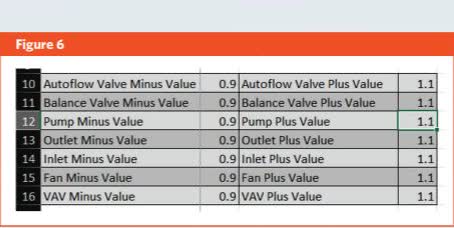
After I decide what the tolerances should be for the project, I run the second macro. This macro decides whether the other macros will run. It looks to see if a sheet name is present, and if the sheet name is present then it runs the macro associated with it. For example, our Building Start server always exports Air Handlers as the sheet name “Air Handling Unit.” If no one builds an Air Handler in the project database, then this sheet will never be a part of an export. If it is present, then this sheet will appear in the export. The portion of the code that looks for this sheet and decides whether to run the macro associated with it is:
If SheetExists("Air Handling Unit") Then Application.Run "PERSONAL.XLSB!BB"This second macro looks for every possible type of equipment we test and balance and, if present, runs the macro associated with it.
Now, let us look at some of what it can do. I will focus on the traverse macro for this example so you can get a feel for how detailed all of this can get. I pulled an Excel file from the Building Start server and edited the data from one of our projects to create these issues.
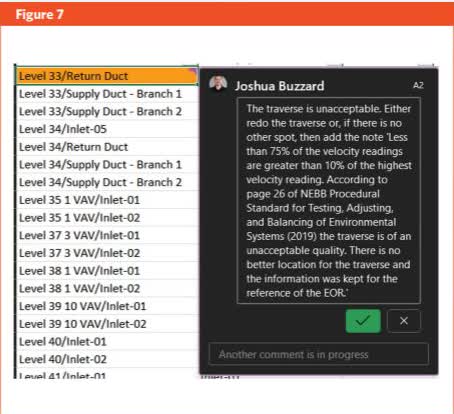
NEBB Procedural Standard 2019, page 26, says that a traverse is accurate if 75% of the velocity pressure readings are greater than 10% of the maximum reading taken. The traverse macro analyzes all velocity readings, decides if the traverse is of acceptable quality, and highlights unacceptable ones in orange with a comment. In Figure 7, you can see that the comment provides a draft note that I can share with the technician to address the traverse and resummarize as needed.
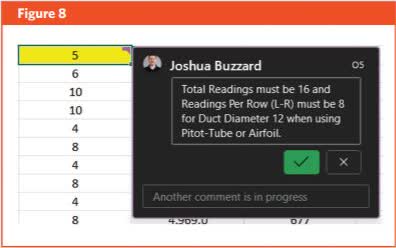
Another thing I did with the traverse macro was look at the number of readings. For round duct, it looks at the size my technicians put in for the duct and then checks to make sure they completed the correct number of readings. If they did not, it highlights the issue in yellow and adds a note. In Figure 8, I changed the number of readings to 5, and this comment appeared.
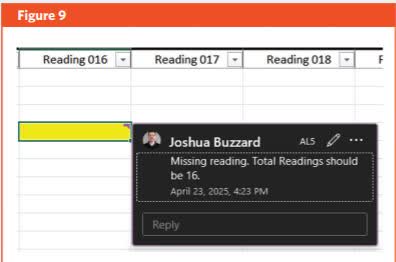
If the technician stated they would take 16 readings but missed a few, the macro flags the missing readings as missing. In Figure 9, I deleted reading 16 and ran the macro again.
Wrap-Up: Start Small, Grow Big
These examples only scratch the surface of what is possible, but I hope this article inspires TAB professionals to harness Large Language Models to create powerful Excel tools for report validation. Every TAB professional knows the challenge of sifting through data to identify issues. By crafting precise prompts, you can leverage Large Language Models to develop VBA macros and validation tools, starting small and scaling up. With these tailored solutions, a single click can transform your reports, saving time and ensuring precision in your TAB workflow.